
Progress Over Perfection: A Quick Way to Fix Messy Links
By Eudora Struble, Executive Director, Technology Accessibility, Information Systems
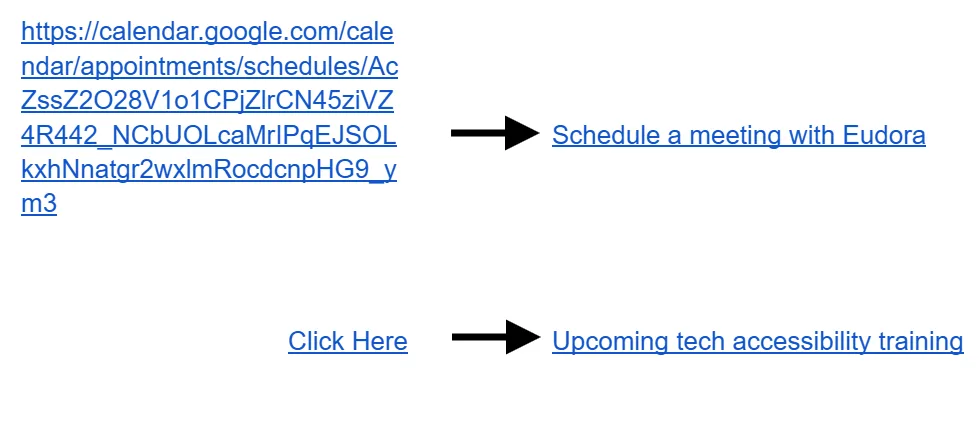
Imagine a student opening course materials on their phone. Now imagine them trying to scroll by a massive, five-line URL made entirely of random characters.
This kind of digital clutter is challenging on small screens and increases cognitive load. Long URLs made of meaningless strings of characters and unclear link names like “Click Here” are harder for everyone to understand. For students using assistive technology like screen readers, these formats can create immediate roadblocks to learning.
You can reduce student confusion, along with those “Where is the reading?” emails, by making your links easy to skim. The fix uses a universal shortcut that works across Canvas, Google Docs, and Gmail.
The Ctrl/Cmd + K Habit
Instead of pasting a raw URL, try this:
- Type a clear, descriptive name for your destination (e.g., “Fall 2026 Bio101 Syllabus”).
- Highlight the text.
- Press Ctrl + K (Windows) or Cmd + K (Mac).
- Paste your URL into the field that pops up and hit Enter.
If you are revising an existing URL or “Click Here”, highlight the text and press Ctrl + K (Windows) or Cmd + K (Mac), then add the meaningful display text in the text field.
Pro tip: In Canvas, this pop-up box is called the “Text to display” field, while Google calls it the “Text” field. If you must list a full URL on a printed document or syllabus, use Wake’s Go Link service to keep it short and usable.
In a few seconds, you have cleaned up your digital materials and ensured everyone can find the readings. Progress over perfection, one link at a time.
In a few seconds, you have cleaned up your digital materials and ensured everyone can find the readings.
For more quick ways to make your course materials accessible, explore tools, guides, and training on the Technology Accessibility Program website, or to continue the conversation!
Categories: Blog Posts